Over the past year I have been intermittently memorizing over a
thousand kanji and a few thousands of Japanese vocabulary words.
Although I often struggled to gauge my reading comprehension, some words
I knew well, others I had never seen, out of frustration I spent an
evening coding a Chrome extension that loads your Anki deck and
immediately lets you visualize your progress in reading comprehension.
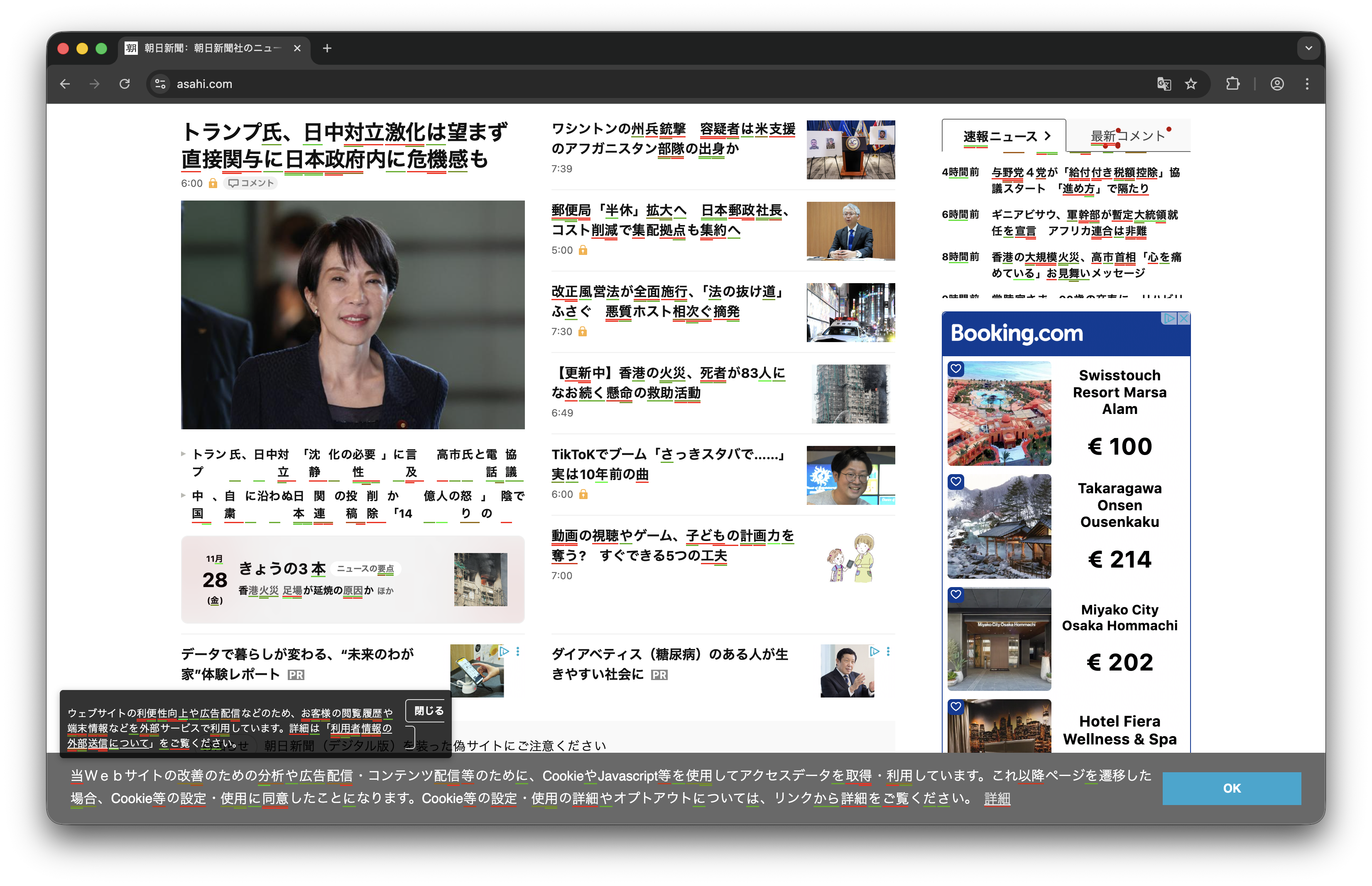
In simple terms, words you know well are underlined in green, while
those you know less well in red. Available now on my GitHub at this link. Free for anyone to
use as they please under any permissive license that may apply.
The motivation for building this tool was entirely personal: when
reading Japanese text online, I could not immediately distinguish
between words I had studied and those I had not. This lack of visual
feedback made it difficult to assess whether I should review certain
vocabulary or whether my difficulty stemmed from unfamiliarity with
grammar rather than vocabulary. By highlighting known words based on
their retention strength, the extension provides immediate visual
feedback about comprehension gaps, transforming passive reading into an
active assessment of vocabulary mastery.
Technical
Architecture and Chrome Extension Development
The extension is built using the WXT framework, a modern development
environment for cross-browser extensions that provides TypeScript
support, hot module reloading, and a simplified API surface over the
Chrome extension manifest V3 format. WXT abstracts away much of the
boilerplate associated with extension development, allowing me to focus
on the core functionality rather than wrestling with manifest
configuration and background script lifecycle management.
The architecture consists of two main components: a background script
that manages data synchronization with Anki, and a content script that
runs on every webpage to perform the highlighting. The background script
is responsible for fetching card data from Anki via the AnkiConnect
add-on, which exposes a local HTTP API on port 8765. This API accepts
JSON-RPC requests and returns card statistics including interval,
lapses, repetitions, and ease factor. The background script caches this
data in IndexedDB to enable instant highlighting on page load without
waiting for network requests.
One of the primary challenges was ensuring that the extension could
highlight words immediately upon page load without introducing
perceptible latency. Fetching thousands of cards from Anki over HTTP
takes several seconds, which is unacceptable for a tool meant to provide
instant feedback. To address this, I implemented a multi-tier caching
strategy using IndexedDB, a browser-native key-value store that persists
across sessions.
When the extension first installs, the background script fetches all
cards from the specified Anki deck and stores them in IndexedDB along
with a timestamp indicating when the sync occurred. On subsequent page
loads, the content script requests the word list from the background
script, which returns the cached data immediately from an in-memory Map
structure. This in-memory cache is populated from IndexedDB on extension
startup, ensuring sub-millisecond response times for the content
script.
The background script also implements automatic re-synchronization
every 24 hours to ensure the cached data reflects recent reviews. The
sync operation fetches card IDs in batches of 500 using the
findCards and cardsInfo AnkiConnect API calls,
processing up to 5 batches concurrently to minimize total sync time. For
a deck of 3000 cards, the entire sync completes in approximately 8-10
seconds, which is acceptable since it occurs in the background without
blocking the user interface.
How Does It Work?
The card data is fetched from Anki via the Anki Connect extension.
Once per day, this data is processed to obtain each card’s statistics,
interval, lapses, and repetitions, and to calculate a difficulty level
ranging from 0 to 100. These data are then used to highlight words on
the page. The extension defaults to the deck called “Japanese,” but that
can be customized in the code.
The “interval” indicates the number of days until the card is next
due for review. “Lapses” indicates how many times you have forgotten a
given card. “Repetitions” is the total number of views. The “ease
factor” reflects, in Anki’s internal statistics, how easily you remember
the card. Interval is the most important parameter because a longer
interval indicates a stronger memory for that specific word or
character. An interval of six months (180 days) is associated with
long-term memory, while a one-day interval means the item was just
learned and is likely to be forgotten. To convert interval into a
normalized score from 0 to 100, assign ranges based on retention
duration: 90–100 for intervals of six months or more; 75–90 for three to
six months; 50–75 for three weeks to three months; 30–50 for one to
three weeks; and 10–30 for one week or less:
This is a piecewise linear function: progress in memorization is not
linear. A one-week interval indicates the information is established in
short-term memory; three weeks marks a transition to medium-term memory;
three months represents a solid medium-term memory. Six months means it
has entered long-term memory and can be freely recalled.
The interval score is clearly not the only metric that should be
considered. I also assign a score to lapses and apply a penalty, because
mistakes indicate difficulty:
The reasoning behind this formula is that each lapse subtracts five
points from the score, capped at a maximum loss of 25 points. This is
intentionally lenient because occasional lapses are normal, especially
with difficult words or characters, and a single mistake should not
drastically reduce the score.
Then there are repetitions, which provide a bonus: reviewing a card
multiple times signals engagement and helps distinguish truly new cards
that have never been reviewed from younger ones that have only recently
begun to be reviewed:
The final score indicating difficulty is obtained by summing all of
these scores and clamping the result between 0 and 100, producing a
single number that reflects how well each word is known based on my
actual learning history:
This score is then used as input to the text-highlighting
algorithm.
Text-Highlight Algorithm
If we search for the words or characters from our deck within a web
page, multiple substrings may match. This is particularly evident in
Chinese and Japanese, where words are not separated by spaces and their
reading order, and also possible compounds create many overlaps. Simply
highlighting the longest match would obscure information about shorter
words; the user should be able to see their knowledge about individual
characters and compounds. My solution is a tree-like structure: the
algorithm first highlights the primary, longest match, corresponding to
the compounds, then adds color-coded underlines for all overlapping
words, stacking them vertically to avoid visual overlap and
collision.
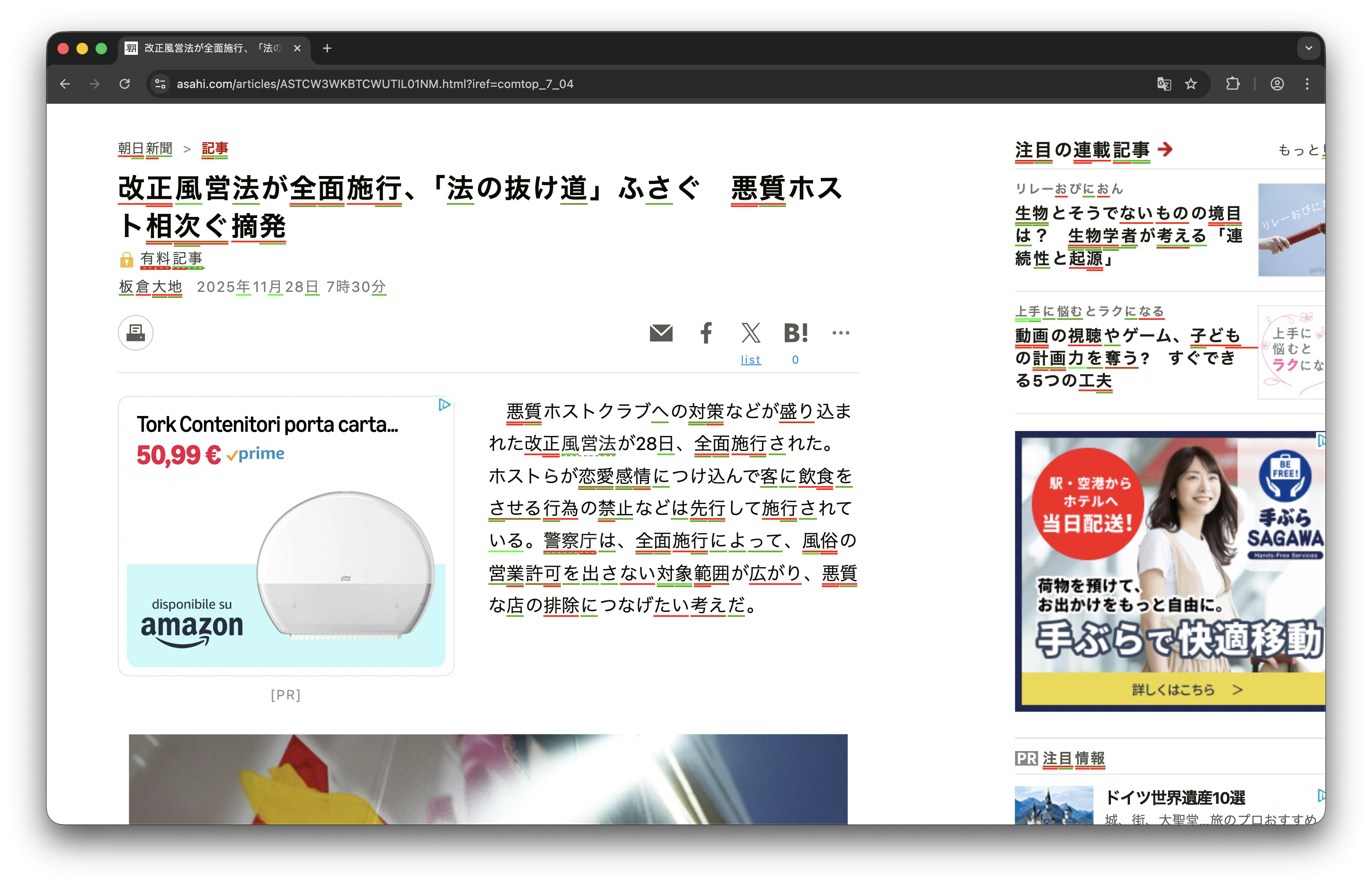
The color scheme maps the difficulty levels to a red to green
gradient. Red indicates low difficulty words, high difficulty words,
meaning those with a low score, while green indicates mastered words,
those with a higher score. The formula used specifically is the
following one:
where
is the difficulty level within the interval
.
This formula produces a smooth gradient: a score of 50 and a
difficulty score of 50 yield yellow, while a score of 25% yields orange.
The text highlight is shown in the following image with more detail.
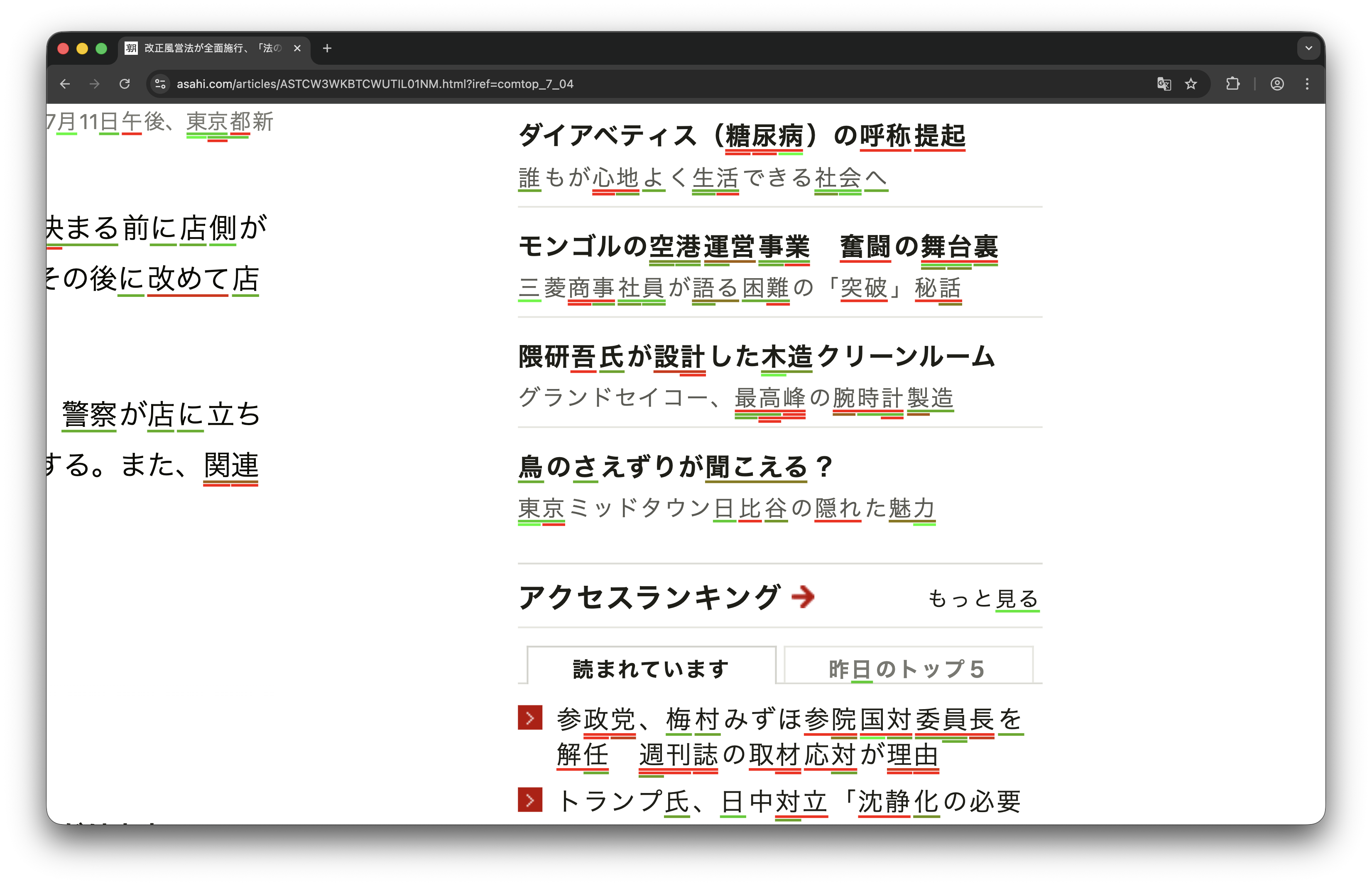
In the last image, many words appear with multiple matches; the
entire words are not known, but shorter compounds of its characters are,
and the algorithm correctly reflects this, concurrently highlighting
without creating visual clutter.
DOM Traversal and
Incremental Rendering
The highlighting algorithm operates directly on the webpage’s DOM
(Document Object Model), which presents several performance challenges.
A typical webpage contains thousands of text nodes distributed across
complex element hierarchies, and naively processing all of them in a
single operation would block the browser’s main thread, causing the page
to freeze. To prevent this, I implemented an incremental rendering
strategy that processes text nodes in small batches using the
requestIdleCallback API, which schedules work during
browser idle time when the page is not responding to user input or
performing layout calculations.
The algorithm begins by creating a TreeWalker that
traverses all text nodes in the document while filtering out nodes
within <script>, <style>,
<textarea>, and <input> elements,
as well as nodes that have already been highlighted. This walker
produces a list of candidate text nodes, which are then processed in
batches of 50 nodes per iteration. Each iteration has a time budget of 8
milliseconds, and if the processing exceeds this budget, the current
batch is interrupted and the remaining work is scheduled for the next
idle period. This approach ensures that the highlighting never blocks
user interactions, even on pages with tens of thousands of text
nodes.
Within each batch, the algorithm searches for all word matches using
a simple indexOf loop for each word in the dictionary. This
is more efficient than regular expressions for exact substring matching,
especially when the dictionary contains thousands of entries. Matches
are collected and sorted by position, with longer matches taking
precedence at the same position. The replacement fragment is then
constructed by interleaving plain text nodes with highlighted
<span> elements, which are inserted atomically by
replacing the original text node. This atomic replacement prevents
layout thrashing and ensures that the highlighting appears
instantaneously to the user.
Handling Dynamic
Content with MutationObserver
Many modern websites load content dynamically via JavaScript after
the initial page load, which means the extension must re-highlight text
as new nodes are added to the DOM. To detect these changes, I use a
MutationObserver that monitors the document body for added
nodes. When new elements are detected, the observer debounces the
re-highlighting operation with a 300-millisecond delay to avoid
excessive re-processing when multiple nodes are added in quick
succession, such as during infinite scroll or single-page
navigation.
The observer callback checks whether any of the added nodes are
element nodes (as opposed to text nodes) and, if so, schedules a
re-highlight. This design choice balances responsiveness with
performance: text-only additions (such as typing in a text editor) are
ignored, while structural changes that likely contain new content
trigger a re-highlight. The debouncing ensures that rapid DOM mutations,
such as those caused by animations or rapid user interactions, do not
overwhelm the highlighting system.
Lessons and Future
Improvements
Throughout development, I discovered that browser performance
characteristics vary significantly depending on page structure and
content. Pages with deeply nested DOM trees or heavy use of inline
styles tend to be slower to process because the layout engine must
recompute styles for each modified node. In contrast, pages with
shallow, flat DOM structures and minimal inline styles highlight almost
instantaneously.
One limitation of the current implementation is that it relies on
exact substring matching, which fails to handle inflected forms of words
in languages with rich morphology. For Japanese, this is less
problematic because the writing system uses distinct characters for each
word, but for languages like Russian or Finnish, a more sophisticated
morphological analyzer would be necessary to match word stems rather
than exact forms. Another potential improvement would be to use a trie
data structure instead of a linear search through the word list, which
would reduce the time complexity from
to
where
is the number of words and
is the length of the text.
Despite these limitations, the extension has proven invaluable for my
Japanese studies. The immediate visual feedback transforms passive
reading into an active diagnostic tool, allowing me to identify
vocabulary gaps and prioritize review sessions based on actual reading
comprehension rather than abstract spaced repetition schedules.